
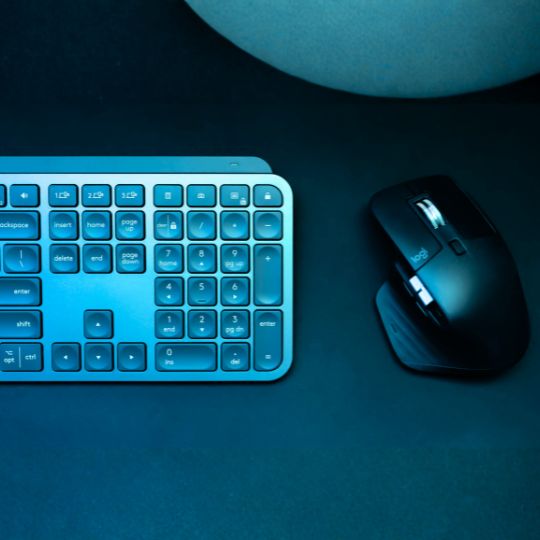
Unlock the Power of Your Keyboard
Most professionals spend their entire workday at their computer. With the hours we spent at our desk, understanding exactly what we can do quickly with keyboard shortcuts is something that's often underutilized. We've compiled 25 shortcuts, from ones we hope you know to ones you didn't know were possible. Save some minutes and become a keyboard whiz!
The Basics (You Probably Know These)
1. Copy / Paste / Cut
Ctrl+C / Ctrl+V / Ctrl+X
Everyone knows how to copy and paste. But there are a few variations you might not know:
- Ctrl+Shift+V: Paste without formatting (strips fonts, colors, styles)
- Ctrl+Alt+V: Paste special (choose what to paste—text only, formatting, etc.)
Use case: Copying from a website into a client document. Ctrl+Shift+V removes the web formatting so it matches your document style.
2. Undo
Ctrl+Z
Ctrl+Z reverses your last action. Press it multiple times to undo several steps.
3. Redo
Ctrl + Y
Reverses a previous undo.
4. Save
Ctrl+S
Save your work. Do this often. Windows doesn't auto-save everything.
Use case: Writing a report. Hit Ctrl+S every few minutes to avoid losing work if your computer crashes.
5. Switch Between Open Apps
Alt+Tab
Hold Alt, press Tab to cycle through open applications. Release to switch.
Use case: Quick switching between email, browser, and documents during a busy workday.
6. Show Desktop (Minimize All)
Win+D
Instantly minimizes all windows to show your desktop. Press again to restore them.
Use case: You need to quickly show your desktop (during a presentation, or to access a desktop file). Or you just need to quickly wade through the layers of open windows.
Intermediate (You Might Incorporate Some of These New Ones)
7. Screenshot Tool
Win+Shift+S
Opens the screenshot utility. Select an area, window, or full screen. Also copies to clipboard if you want to immediately attach it somewhere else.
Use case: You need to send a screenshot of an error message to IT support. Win+Shift+S ? select area ? paste into email.
8. Open File Explorer
Win+E
Opens File Explorer instantly. Faster than clicking the folder icon.
Use case: You need to find a client file. Win+E ? navigate to folder ? done.
9. Open Task Manager Directly
Ctrl+Shift+Esc
Opens Task Manager without the Ctrl+Alt+Delete screen or searching to get there.
Use case: An app is frozen. Ctrl+Shift+Esc ? end task ? back to work.
10. Lock Your Computer
Win+L
Locks your session immediately. Use this when leaving your desk.
Use case: Walking away from your computer in a public place or in the office. Win+L secures your computer so others can't access your files.
11. Clipboard History
Win+V
Shows your clipboard history (if enabled). You can paste older items, not just the last copy.
Use case: You copied three different client names. Win+V ? choose which one to paste.
How to enable: Open Settings ? System ? Clipboard and toggle Clipboard history to On. If you've never turned it on, pressing Win+V will prompt you to enable it right there.
Bonus: Quick Access to System Controls
Ctrl + Alt + Delete
This is a fantastic shortcut to know. If your computer is frozen, an app isn't closing, your login screen isn't starting, and more, this is a quick fix to try. This command interrupts current operations and brings up a special menu with the options:
- Lock your computer
- Switch users
- Sign out
- Change your password
- Open Task Manager
Uncommon (You Might Become the Office Wizard)
12. Emoji Panel
Win+.
Opens the emoji picker. Yes, Windows has emojis built in. Useful for quick symbols too (©, ®, ?, ?).
Use case: Adding a checkmark (?) to a checklist, or a copyright symbol (©) to a document.
13. Quick Access Menu
Win+X
Opens a menu with quick access to system tools (Settings, File Explorer, Task Manager, PowerShell, etc.).
Use case: You need to access Settings quickly. Win+X ? Settings ? done.
14. Project/Display Settings
Win+P
Opens display projection options (duplicate, extend, second screen only). This works any time your computer detects—or could detect—an external display. That includes plugging into a conference room projector, connecting to a TV via HDMI, or extending to a second monitor at your desk.
It also comes in handy during video calls. In Teams or Zoom, you'll still use the app's own "Share Screen" button to choose what others see, but Win+P controls how your displays are arranged before you share. For example, you might extend your display so you can present a slideshow on one screen while keeping your notes visible on the other.
Use case: Connecting to a projector for a presentation. Win+P ? choose display mode. Or before a Teams call, extending your display so you can share one screen and keep your notes on the other.
15. Open Settings
Win+I
Opens Windows Settings directly.
Use case: You need to change a setting. Win+I ? navigate to what you need.
16. Create New Virtual Desktop
Win+Ctrl+D
Creates a new virtual desktop. Keeps your work organized by project or task.
Use case: Separate desktops for different clients or projects. Clean separation, no mixing files.
17. Switch Virtual Desktops
Ctrl+Win+Left/Right Arrow
If you use virtual desktops (Win+Tab to create), this switches between them.
Use case: One desktop for client work, one for internal tasks. Switch instantly.
Power User Shortcuts (Well-Appreciated by the More Technical)
18. Action Center
Win+A
Opens notifications and quick settings (Wi-Fi, Bluetooth, brightness, etc.).
Use case: Toggle Wi-Fi, adjust brightness, check notifications quickly.
19. Voice Typing
Win+H
Opens voice typing and text prediction features (if enabled).
Use case: Quick access to frequently typed phrases (if configured). Or, if you need to send a long message and would prefer to type it than say it.
20. Persistent Alt+Tab
Ctrl+Alt+Tab
Opens Alt+Tab interface (see all apps currently open) and stays open (vs. closing when you release keys).
Use case: You need to be able to switch specific apps easily.
App-Specific Shortcuts (For Daily Business Tools)
21. Print
Ctrl+P
Opens print dialog in most applications.
Use case: Quick printing of client documents, reports, invoices.
22. Find/Search
Ctrl+F
Opens search function in most applications (browser, Word, Excel, etc.).
Use case: Finding a specific term in a long document or webpage.
23. Jump to Top/Bottom of Document
Ctrl+Home / Ctrl+End
In Word and similar apps, jumps to the beginning or end of the document.
Use case: Long client report. Ctrl+Home ? top. Ctrl+End ? bottom.
24. Close Current Window
Alt+F4
Closes the active window (alternative to clicking the X).
Use case: Quick closing of apps without reaching for the mouse.
25. Open Apps from Taskbar
Win+1 through Win+9
Opens or switches to the app pinned to that position on your taskbar.
Use case: Win+1 ? opens first pinned app (often your browser or email). Win+2 ? second pinned app.
Why This Helps You
You don't need to be a technical person to use and appreciate these. Make your workday a little easier and faster.
Time savings: Each shortcut saves 5–10 seconds. Over a day, that's minutes. Over a week, that's hours.
Productivity: Faster navigation means more time for actual work—not clicking through menus.
Professionalism: Teams that know shortcuts work faster and look more competent.
Your keyboard is faster than your mouse. These 25 shortcuts prove it.
From basic (Ctrl+C) to uncommon (Win+Ctrl+D), each one saves time. For business owners: your team's efficiency matters. Small improvements add up.
Start with three. Use them daily. Add more over time. You and your team will be faster and soon you'll wonder why you didn't look these up sooner.
FAQs
Q: What is the most useful Windows shortcut for business users? A: Win+Shift+S (screenshot tool) and Win+L (lock computer) are essential for business users. Screenshots help document issues for IT support, and locking your computer secures client data when you leave your desk.
Q: How do I enable clipboard history (Win+V)? A: Go to Settings ? System ? Clipboard ? turn on "Clipboard history." This allows you to access multiple copied items, not just the last one.
Q: Are Windows shortcuts the same on all versions? A: Most shortcuts work across Windows 10 and 11. Some newer shortcuts (like Win+V clipboard history) require Windows 10/11 and may need to be enabled in Settings.
Q: What shortcut opens Task Manager? A: Ctrl+Shift+Esc opens Task Manager directly. This is faster than Ctrl+Alt+Delete, which shows a security screen first.
Q: Can I customize Windows shortcuts? A: Windows doesn't allow native customization of most shortcuts, but third-party tools like AutoHotkey can create custom shortcuts. For business environments, consult IT before installing customization tools.
Want your team to work faster? Schedule a meeting to discuss IT training and optimization.