
Have you heard about the release of Copilot Cowork? As of June 16, Copilot Cowork became generally available to people with Microsoft Copilot subscriptions. If you're not using it yet, you could be missing a significant tool for your company.
Copilot Cowork, adapted from the same technology as Claude Cowork, elevates Copilot from a helpful assistant and chatbot into something closer to a collaborative teammate. Instead of asking one-off questions and getting standalone answers, a user can work alongside Copilot on complex projects, iterate on ideas in real time, and build on previous conversations without constantly re-explaining context.
Copilot Cowork was piloted in Microsoft's Frontier program, which gives organizations access to the newest Copilot features before they roll out on a larger scale, in March 2026. As of June 16, 2026, Copilot Cowork is available on a usage-based basis using Copilot Credits, the same system used to pay for Copilot Studio. Copilot Credits can be purchased on a pay-as-you-go plan or a pre-purchase plan. Microsoft notes that cost-per-prompt, Copilot Cowork is 30-40% cheaper than Claude Cowork.
Let's talk about what Copilot Cowork actually is, how to start using it, and why it matters if you're already investing in Microsoft's AI tools.
What Is Copilot Cowork?
Copilot Cowork is a new collaborative mode within Copilot for Microsoft 365 that lets a user work with the AI in a more iterative way, lending itself really well for projects. Instead of disparate question-and-answer exchanges, Copilot Cowork maintains some user context across sessions, like custom skills to complete specific tasks faster.
It's best for tasks that require back-and-forth collaboration like drafting documents, brainstorming strategies, refining presentations, analyzing data sets, planning projects, and more.
Though Copilot Cowork is great for its drafting and brainstorming capabilities, it can also take actions across your Microsoft 365 environment. Copilot Cowork can send emails, create and update calendar events, post messages in Teams, save documents directly to your OneDrive, and search across email, Teams conversations, and files simultaneously.
Copilot Skills and Plugins
One of Copilot Cowork's strengths is that it can leverage skills and plugins, extensions that connect Copilot to additional data sources, business apps, and workflows beyond the core Microsoft 365 suite.
Skills
Skills are purpose-built capabilities that define what Copilot can actually do within a session. Microsoft breaks these into several categories in the Copilot extensibility documentation.
Built-in Skills
Cowork comes with a set of built-in skills that are available to all users: daily briefing, meeting summaries, calendar management, document creation (Word, Excel, PowerPoint, PDF), stakeholder communications, schedule management, and more. You don't need to set these up; they're always available.
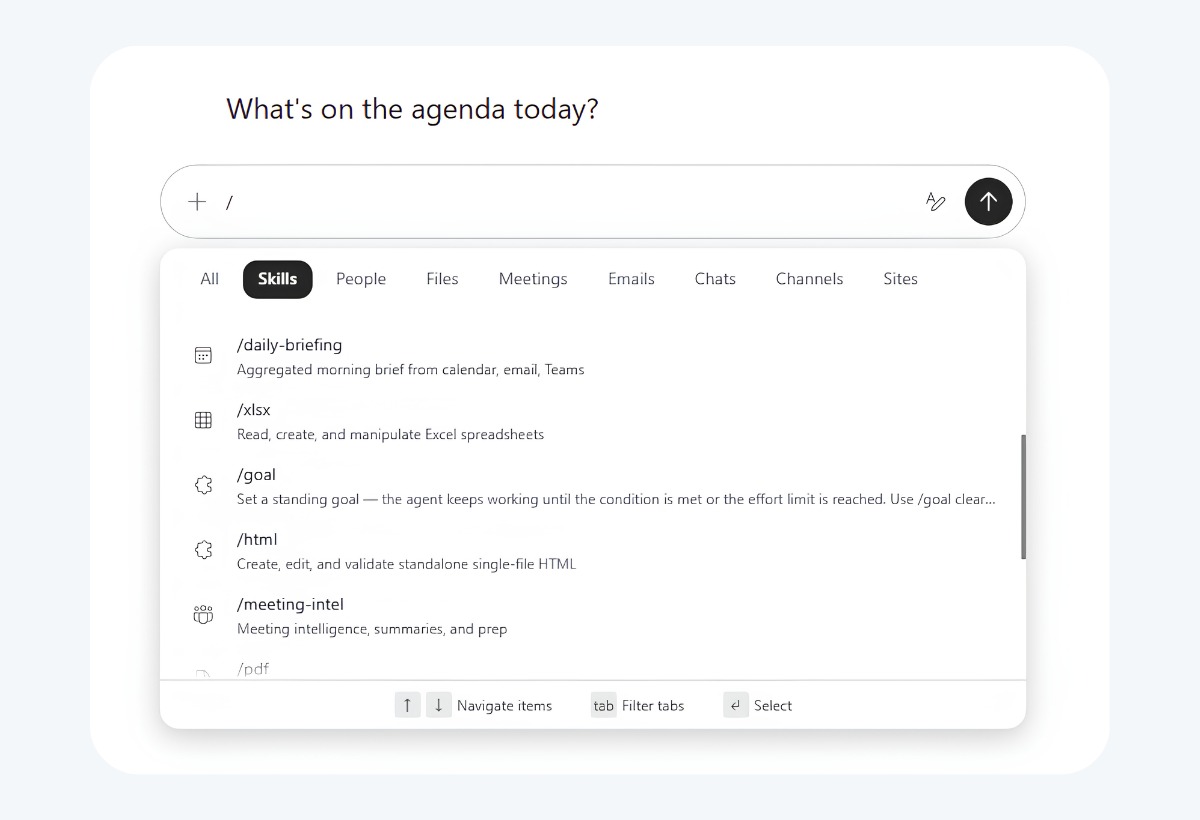
The easiest way to browse all available skills, both built-in and your own, is to type "/" in the Cowork chat interface. This opens a searchable skill picker showing everything available in your session. You can also access them directly by writing "/" and the skill name, like "/daily-briefing". Or, you can trigger any skill by describing what you want in plain language. Cowork then routes to the right one automatically.
Custom Skills
Custom skills are tailored to your specific workflows and you can be built by asking Copilot Cowork itself to help you build a skill, essentially having the AI create its own capability based on what you describe. To create one, simply describe what you want in the chat: "Build me a skill that pulls my open action items from Teams and sends me a summary every morning." Cowork will create the skill without backend configuration on your part. You can access custom skills with natural language requests in the conversation by typing "/" in the chat (that will bring up a list of your custom skills), or you can call specific skills with their own, built-in commands, like "/example-skill."
In addition, Copilot Cowork gives you feedback on the quality of your custom skill based on four factors: trigger clarity (does it know when to fire?), instruction specificity (does it know exactly what to do?), scope boundaries (does it do more than you want it to?), and robustness (does it work as expected across requests?). It then returns a score out of 100 with a plain-English breakdown and a nice, easy-to-read table of where it can improve. Skills scoring below 70 are flagged for improvement.
Plugins
Plugins extend Copilot's reach into third-party tools and services through standardized interfaces. According to Microsoft's plugin overview, these include:
- Teams message extension plugins, which let Copilot search and interact with external services directly within the flow of a conversation
- OpenAI plugins, which use a standardized manifest format to connect Copilot to external APIs
- Copilot Studio actions, which can call into Power Platform connectors—giving Copilot access to over 1,400 pre-built connectors for platforms like Jira, ServiceNow, Salesforce, and hundreds of industry-specific applications
In a Copilot Cowork session, plugins are particularly useful because you can pull in external data mid-workflow and keep iterating without leaving the session.
How to Access and Use Copilot Cowork
Accessing Copilot Cowork is straightforward. The feature lives in the Copilot chat interface and is organized on the sidebar like it's an Agent. It cannot be accessed via Copilot icons within Microsoft apps, but it can interact with Microsoft 365 apps, like creating and editing PowerPoints, Word docs, and Excel sheets.
If it isn't already in your Agent list, you can easily find it by searching for "Cowork" and adding it from there.
Starting a Copilot Cowork session
- Open Copilot in your preferred Microsoft 365 app or at copilot.microsoft.com.
- Look for the Copilot Cowork option in the chat interface. Depending on your version, this might appear as an icon, a session type selector, or a "Start Copilot Cowork session" button.
- Describe your project or task in detail. The more context you provide upfront, the better Copilot can assist throughout the session. For example: "I'm preparing a quarterly financial review for a mid-size property management company. I need to summarize performance across three locations, highlight trends in vacancy rates, and create talking points for the investor meeting. Start with an outline, then help me draft each section."
- Work iteratively. Ask Copilot to generate an outline, review it, ask for adjustments, then move to drafting. Copilot will remember what you've discussed and build on it.
Tips for getting the most out of Copilot Cowork
- Set the stage early: At the start of your session, give Copilot the big picture. What's the goal? Who's the audience? What constraints or priorities matter? This context will carry through the entire session.
- Treat it like a conversation: Don't hesitate to say things like "actually, let's take a different angle" or "can you make that section more direct?" Copilot Cowork is built for this kind of back-and-forth.
- Use it for multi-step projects: Copilot Cowork shines when you need to move through research, planning, drafting, and editing in one sitting. Standard Copilot works well for quick tasks, but Copilot Cowork is better for continued work.
- Review and steer: Copilot will generate content quickly, but it may not produce exactly what you want immediately. Actively guide the session by reviewing what it produces and giving clear feedback.
Why You Should Be Using Copilot Cowork
If your team has already started to use AI in the workday, Copilot Cowork could be the tool that elevates your AI-assisted tasks to something that is easier to use with more dependable and impressive output.
We think it's worth trying out. Here's why:
It saves time on complex tasks
Standard Copilot interactions are great for quick answers or single outputs (summarize this email, draft a response, create a chart). But when you're working on something that requires multiple steps, repeatedly re-explaining context eats up time. Copilot Cowork eliminates that unnecessarily spent time. You explain once, then iterate.
It produces better outputs through iteration
First drafts are rarely final drafts. Copilot Cowork lets you refine ideas in real time without losing momentum. You can ask Copilot to adjust tone, add examples, tighten language, or reframe an argument, all while building on the work you've already done together. The result is higher-quality output because you're collaborating, not just generating. Those iterations that improve quality also save you time in the future; you start off in a much better place for the next project.
A Harvard Business School study on AI-assisted knowledge work found that professionals using AI tools iteratively (refining outputs through multiple rounds) produced work rated 40% higher in quality than those who used single-shot generation.
Why Use Copilot Cowork Instead of Free AI Tools?
This is a fair question, because free tools are so much more widely accessible. ChatGPT, Google Gemini, and other free AI tools can handle iterative conversations too. So why bother with Copilot Cowork?
One of the biggest reasons is data privacy and security.
When you use a free consumer AI tool, your prompts and the content you share typically become part of the provider's dataset. That data may be used to train future models, which means your client information, financial details, internal strategies, and confidential documents could end up influencing outputs that other people see. For a law firm, accounting practice, or any professional services firm handling sensitive client data, that's a real liability.
Get Full Copilot Capabilities
Copilot Cowork is the next exciting step with Copilot. Companies that are early adopters for emerging tech gain a strong advantage over those that are slow to adapt. Try it the next time you're drafting a proposal, building a presentation, or planning a project. Start a Copilot Cowork session, give Copilot the context upfront, and work through the task together. You'll spend less time re-explaining, less time context-switching, and more time actually getting work done.
If you're not sure whether you're getting the most out of your Microsoft 365 investment or if you need help training your team on tools like Copilot, we can help. We work with professional services firms across the Portland metro and beyond to make sure their technology actually supports their work instead of getting in the way. Our managed IT services include hands-on guidance for getting real value out of tools like Copilot.
Common Questions About Copilot Cowork
Q: Does Copilot Cowork work across different apps?
A: Copilot Cowork sessions run in the Copilot desktop or internet app rather than inside individual apps, but within a session you can work across your full Microsoft 365 environment (email, calendar, Teams, SharePoint, OneDrive) and produce Word documents, Excel spreadsheets, or PowerPoint presentations as outputs. Everything is done within the Copilot Cowork interface.
Q: Is my data private in a Copilot Cowork session?
A: Yes. Copilot Cowork operates under the same data privacy and compliance standards as the rest of Copilot for Microsoft 365. Your prompts and the content generated are protected by Microsoft's enterprise data protections, and they're not used to train public AI models. Microsoft's Trust Center has the full details.
Q: Can I save or share a Copilot Cowork session?
A: Currently, Copilot Cowork sessions exist within the Copilot chat interface. You can copy outputs into documents or save chat transcripts, but there isn't a formal "save session" feature yet. This is an area where Microsoft is likely to add functionality as the feature matures in the future.