
If you've used Excel for any length of time, you've probably experienced a glaring "ERROR" message. It happens to the best and most experienced of us. It can be frustrating to see error messages with a spreadsheet you've worked hard on, but luckily there are some common errors you can look out for and some solutions to keep in your back pocket.
Welcome back to SpireTech's ongoing Excel tutorial series. We're a Managed IT Services provider in the Pacific Northwest, and we love making tech approachable for anyone. If you're curious about how we can help your business, you can book a free IT consultation.
Last month we covered techniques for easy Excel data cleaning, which we think is how to get a strong foundation when working with spreadsheets. This month, we're tackling the errors that trip up even experienced users.
Why Excel Errors Matter
Excel errors aren't just annoying; they can threaten your data's accuracy with incorrect calculations and reporting. They break formulas, corrupt reports, and can lead to bad business decisions based on incomplete data. If you've ever sent a budget report to your boss only to realize later that half the totals show #DIV/0!, you know the feeling.
The good news? Most Excel errors follow predictable patterns, and once you understand what causes them, you can prevent or fix them quickly.
Excel's Early Advantages
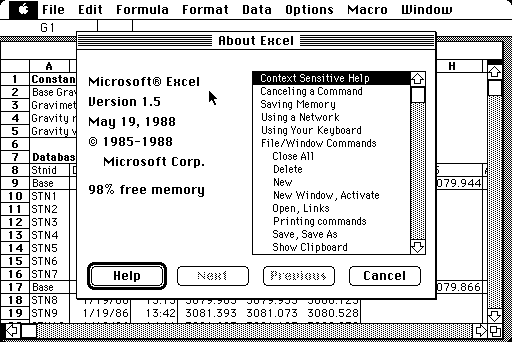
Microsoft launched Excel on September 30, 1985. It has already passed its 40th anniversary! Its longevity makes the fact that it is an office staple to this day all the more impressive.
The technological advances of the time were huge. An old commercial advertising Excel from the 90s is fun to look back on now. Look at that brick of a laptop!
Early in production, the developers had two overarching goals for Excel: to give Excel a lot of built-in features, and speed: specifically, the speed of recalculation.
A huge feature that solidified Excel in the market was intelligent recalc. Instead of recrunching an entire worksheet every time you changed a single cell, Excel updated only the cells that were actually affected. This was major and an unheard-of convenience at the time for spreadsheet software. This capability was so important that the developer team adopted the unofficial motto "Recalc or Die." They even commissioned t-shirts with the slogan.
Their priorities paid off: intelligent recalc, in addition to Excel's speed, gave Excel a decisive speed advantage over the current reigning champion, Lotus 1-2-3.
The name Excel wasn't what the software started with. Early ideas for the name include Microsoft Plansheet," "Master Plan," "Number Body," "Sigma," "Champagne," and even "Mister Spreadsheet." Somehow, "Mister Spreadsheet" just doesn't have the same gravitas.
Common Excel Formula Errors (and How to Fix Them)
#DIV/0! (Division by Zero)
This is probably the most common error you'll see. It happens when a formula tries to divide by zero or by a blank cell.
Example:
=A1/B1If B1 is zero or empty, you get #DIV/0!.
How to fix it:
Use IFERROR to handle it easily:
=IFERROR(A1/B1, 0)This returns 0 if B1 is zero or blank.
Or use an IF guard for more control:
=IF(B1=0, "", A1/B1)This returns a blank cell instead of 0.
Another option:
=IF(OR(B1="",B1=0),"N/A",A1/B1)This explicitly checks for blank cells.
#N/A (Value Not Available)
This error usually comes from lookup functions like VLOOKUP, XLOOKUP, or MATCH when they can't find a match in your data.
Example:
=VLOOKUP(A1, Table, 2, 0)If A1 doesn't exist in the first column of Table, you get #N/A.
How to fix it:
Use IFNA (preferred for lookups):
=IFNA(VLOOKUP(A1, Table, 2, 0), "Not found")Or use IFERROR:
=IFERROR(VLOOKUP(A1, Table, 2, 0), "Not found")IFNA is better to use. IFNA only catches #N/A errors, which means if you have a real problem like a mistyped range reference, you'll still see that error. IFERROR silently hides all errors, which can mask bugs you need to know about.
#REF! (Invalid Cell Reference)
This error appears when a formula references a cell that has been deleted. If you've ever deleted a row and watched formulas break across your worksheet, you've met #REF!.
How to fix it:
Prevention is key here. Before deleting rows or columns, use Ctrl+` (the key above Tab) to show all formulas in your worksheet. Scan for any references to the area you're about to delete.
If the error already exists, you'll need to manually audit and fix the broken formulas. Click on a cell showing #REF!, look at the formula bar, and reconstruct the reference to point to the correct cell.
#VALUE! (Wrong Data Type)
This error means you're trying to perform a mathematical operation on text, or mixing incompatible data types.
Example:
=A1+B1If A1 contains "apples" and B1 contains 5, you'll get #VALUE! because Excel can't add text to a number.
How to fix it:
Check your cells for text that looks like numbers. Sometimes imported data has numbers stored as text. You can convert text to numbers by multiplying by 1:
=A1*1Or use the VALUE function:
=VALUE(A1)#NAME? (Unrecognized Formula Name)
This error appears when Excel doesn't recognize something in your formula. Usually it's a misspelled function name.
Example:
=SUMM(A1:A10)Excel doesn't know what SUMM is (it should be SUM), so you get #NAME?.
How to fix it:
Check your spelling. Excel will often autocomplete function names as you type, so if you're not seeing suggestions, you may have a typo.
#NUM! (Invalid Numeric Value)
This error occurs when a formula contains invalid numeric values. The most common cause is trying to calculate the square root of a negative number.
Example:
=SQRT(-1)How to fix it:
Add IFERROR or validate your input:
=IFERROR(SQRT(A1), "Invalid input")Or use an IF statement to check first:
=IF(A1>=0, SQRT(A1), "Cannot calculate")Best Practices for Error Prevention
Use IFNA for lookups. It's a targeted formula and only catches the expected error, so you'll still see other problems that need fixing.
Use IF guards when you know the condition. They're explicit and readable. Someone reviewing your formulas six months from now will understand exactly what you're checking for.
Use data validation to prevent bad input upstream. If you know a cell should only contain numbers between 1 and 100, set up data validation to block everything else. Prevention beats correction.
Avoid wrapping everything in IFERROR during development. While you're building formulas, you want to see errors so you can fix the root cause. IFERROR hides real bugs. Add it at the end, after you've confirmed the formula works correctly with good data.
What's Next in This Series
Excel is a journey, not a destination. Some SpireTech employees have been using Excel since it launched forty years ago. We're still learning.
Right now, Excel is being re-defined once again with the introduction of AI into its program.
Next month we'll cover how to use AI to help you get out of Excel holes. Copilot and Claude are both available in Excel, Copilot being built in and Claude available as an extension. The added capabilities add some major power behind Excel and we've been impressed with how it has helped us get through data even more quickly.
If your business is dealing with data backup challenges or needs help with technology planning, we'd love to help. We give businesses a free, virtual consultation to help you figure out where you are in your IT care and how we can help improve it.
Additional Excel Learning Resources
- W3Schools Excel Tutorial
- Excel Easy - Excel Tutorial on the Net
- Microsoft Excel function list
- MrExcel YouTube Videos
Excel Error FAQs
Q: What's the difference between IFERROR and IFNA? A: IFERROR catches all errors (#DIV/0!, #N/A, #REF!, etc.). IFNA only catches #N/A errors. Use IFNA for lookup formulas so you can still see other types of errors that indicate real problems.
Q: Why do I keep getting #DIV/0! even though my cells aren't blank? A: Check if your cells contain zeros (the number 0) rather than being truly blank. Also check for formulas in those cells that might be returning zero. Use =IF(B1=0, "", A1/B1) to catch both blank and zero cases.
Q: Can I hide error values without using IFERROR? A: Yes, but it's not recommended. You can use conditional formatting to make error text white (invisible), but this hides problems rather than solving them. It's usually better to fix the underlying formula or handle the error explicitly with IFERROR or IFNA.
Q: How do I find all errors in a large spreadsheet? A: Use Go To Special. Press Ctrl+G (or F5), click Special, select Formulas, then check only Errors. Excel will select all cells containing error values. This is much faster than scrolling through thousands of rows.
Q: What does #SPILL! mean? A: #SPILL! is a newer error in Microsoft 365 versions of Excel. It means a dynamic array formula is trying to return multiple values, but the cells where it wants to spill results are blocked by existing data. Clear the cells below and to the right of your formula to fix it.