
Topics:
- Copilot Agent explanation
- Practical use cases
- Where to make them
Everyone knows about Microsoft Copilot already, especially if they're using it in their business. But if you haven't heard about Copilot Agents and aren't using them yet, you're missing out.
Unlike the general Copilot assistant a person might use to draft an email or summarize a meeting via chat, Copilot Agents are specialized AI workers that are designed to handle specific jobs and can integrate directly into your Microsoft 365 apps like Teams, Outlook, Excel, and Word.
For businesses already using Microsoft 365 Copilot for Business in their technical environment, this is an easy next layer of automation.
What Exactly Is a Copilot Agent?
If Copilot is the overall helpful assistant, Copilot Agents are built to be consistent at a specific process.
An agent combines three things:
- Instructions: what you want it to do and how
- Knowledge: access to necessary company data (like SharePoint files, approved documents, CRM data)
- Actions: the ability to actually do things like send emails, update records, or schedule tasks
While regular Copilot completes one-off tasks as you ask for them, agents can work within defined tasks and parameters previously set. Agents can complete multi-step workflows reliably within defined instructions and permissions, but it is important to check the accuracy of an agent’s work to ensure everything is acting as expected.
Key capabilities:
- Multi-step workflows: a user can link actions together into one workflow, like read data, format a report, send an email, and update a calendar
- Context awareness: with information pulled from your SharePoint, company docs, CRM, and other sources, responses are grounded in your business data
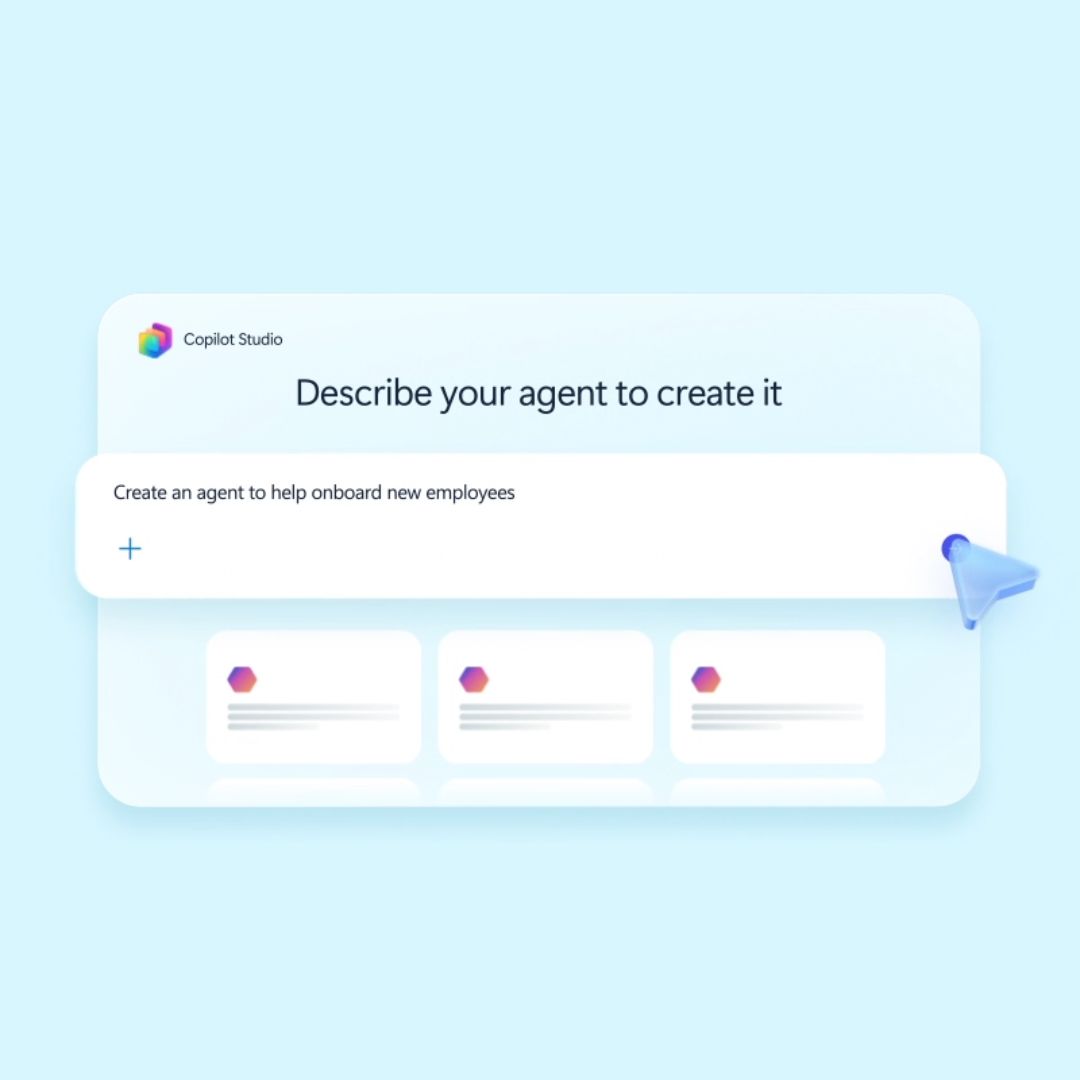
- Natural language setup: agents can be made by describing what you want the agent to do in plain, conversational English
Copilot Agent Templates
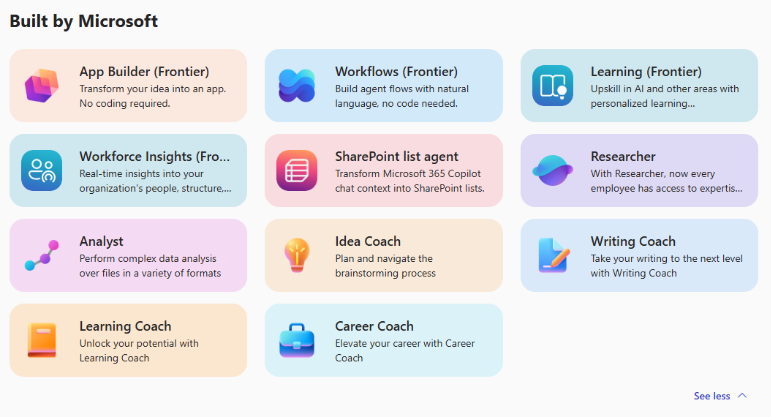
If you’re unsure where to start or feel intimidated by the whole process, Microsoft has a library of Copilot Agent templates to start you out. They’re ready to be used as-is or customized to better fit your task.
Some agents are built into Microsoft 365 Copilot already, like the Research Agent or Writing Coach, that you can find after selecting “New Agent” in the “Built by Microsoft” section. Note: this is not Copilot Chat, this is in the “Agents” section on the left sidebar of the Copilot app. Additional Copilot Agents are online with template documentation on how to build your own.
Real-World Use Cases for Your Business
The best part about Copilot Agents is that they're approachable for the average person to use. A user doesn't need to have complex technical skills or massive budgets to make their own. Here are some practical use cases that could be applied to your business:
1. Meeting Follow-Up Agent
A Copilot Agent that can:
- Summarize what was said during a meeting
- Find action items and follow ups for every person in the meeting
- Create a customized report based off a template that tracks key metrics said during the meeting
- Add a meeting summary and custom report to a dedicated SharePoint file
Setup approach: Make sure the agent has access to the necessary SharePoint files and your project data and say something like, "Send me a summary and report of what we covered in our Research and Development meeting today.” For best results, ensure the meeting is recorded/transcribed and that the agent (and the user invoking it) has permission to access the transcript and the destination in the SharePoint library.
Example instructions to initially set up the Copilot Agent:
When I ask for a summary or report of a Research and Development meeting, you will:
Summarize key points said during the meeting.
Identify follow-up tasks and action items and list them by attendee name where possible.
Capture any metrics, decisions, or milestones discussed.
Create a meeting report using the Word template "ExampleReport.docx".
Save the completed report to the designated SharePoint folder for R&D meeting documentation.
Email the meeting summary and report to me at [email protected].
Only use information from the meeting transcript and related meeting files. If the meeting was not recorded or transcribed, tell me that the report cannot be generated.
2. HR Onboarding Agent
A Copilot Agent that can:
- Send welcome emails with required reading from your SharePoint library to new hires
- Answer common questions, such as about benefits and IT setup
- Schedule introductory meetings with the necessary team members
Setup approach: Use natural language instructions like, "I want you to help new hires at the company by sending a series of welcome emails and a checklist of reminders. You will also answer common questions they might have about the company and schedule meetings with our HR team.” The sources you give your Copilot Agent would include your employee handbook and onboarding documents stored in SharePoint.
Always say what you want it to accomplish and what steps to take. You can even ask if it needs clarification on anything. This is a great way to troubleshoot and correct workflows.
3. Customer Service Triage
A Copilot Agent that can:
- Monitor a shared inbox
- Categorize emails by urgency using previously set criteria
- Draft initial responses and draft answers to any questions
- Escalate urgent matters to the right person
Setup approach: Connect the agent to your support inbox and documented escalation rules. The agent can learn criteria you give it, like "Mark anything mentioning 'billing error' as high priority."
4. Expense Report Assistant
A Copilot Agent that can:
- Review submissions for policy compliance based on company documentation
- Flag missing receipts or required fields
- Answer questions about what is deductible or not
- Prepare it to be sent to the correct team member.
Setup approach: Provide your expense policy PDF and workflows. A user could ask, "Is a $120 client dinner reimbursable?" and get instant answers that are accurate to existing policies. As with all of these agents, it is best to check their work periodically. If this agent is used to approve or deny expenses, define a clear human review/approval step before final submission.
How to Get Started: Three Approaches
Option 1: Agent Builder in the Microsoft 365 Copilot App (Easiest)
The Agent Builder in Microsoft 365 Copilot is built right into the Teams, the Copilot app, and Copilot web interface. No coding is required with this method. Make sure your organization’s Microsoft 365 Copilot is set for work accounts (not consumer-facing tools) when working with business or sensitive data. This will keep your data safe and it will not be exfiltrated for future training.
This is best for people with no coding experience.
Agent Builder lets you create agents using easy, natural language. Here's how to get there:
- Open Copilot in Teams, the Copilot app, or at copilot.microsoft.com
- Select "Create an agent"
- Describe what you want like you are telling a person
- Connect necessary knowledge sources (SharePoint files, documents)
- Configure actions the agent can take
- Test and share with your team
Example: "I need an agent that helps prepare for sales calls by summarizing email history and recent meetings." This agent would need to connect to your CRM, email, and company website.
Option 2: Microsoft Copilot Studio (More Control)
Microsoft Copilot Studio has a visual, low-code interface that can use multiple data sources and custom logic. It also allows integration with Power Automate and inherits enterprise governance controls. In Copilot Studio, a user can set event triggers so that the Agent acts autonomously. They do have some event triggers built in that can be dropped into the workflow, but event triggers are currently in public preview and may impact usage?based billing. Custom triggers and more complex events need to be made in Power Automate. More technical knowledge is needed for this option; we recommend Option 1, Agent Builder, in most cases.
This is best for organizations wanting to use multiple data sources or more involved logic in their workflow.
The process:
- Sign into copilotstudio.microsoft.com
- Define your agent's purpose
- Add knowledge sources (SharePoint, Dataverse, documents)
- Configure topics
- Build workflows
- Test, publish, and share
Option 3: Azure AI Foundry Custom Agents (Advanced)
Custom agents built with Azure AI services require development resources and are typically suited for larger organizations. Or if you're a client of SpireTech's or a Portland business, a setup could be reached with the help of our AI Services.
This lets someone create their own AI models and complex systems fully customized to their needs. It can require significant technical expertise.
For most businesses, the answer is to start with Agent Builder.
Security and Governance: What You Need to Know
SpireTech recommends Microsoft 365 environments for businesses because Microsoft has enterprise-grade security built in.
Microsoft's enterprise-grade security in Copilot Agents includes:
- Access controls: agents inherit the permissions of the person who creates them
- Data boundaries: the creator has control over what sources an agent can access
- Action limits: define what agents can do (such as view-only vs. send emails)
- Audit trails: all activities are logged and reviewable
Questions to ask before deploying:
- What sensitive data will this agent access?
- Who can initiate it and what can they do?
- What is the approval process for agent actions?
- How will we monitor and adjust in the future?
The Bottom Line
The era of AI agents isn't coming; it’s here. We recommend businesses start small, pick one repetitive task, and build an agent for that purpose. Learn what works and expand your usage from there.
SpireTech watches emerging AI technologies and infrastructure. We evaluate feasibility for Portland businesses and recommend adoption when it is suitable.
Are you ready to explore Copilot agents for your business? SpireTech can take care of that. Schedule an introductory meeting to discuss how Microsoft 365 Copilot Agents could fit your business strategy.
Note on Preview Features:
Some examples (such as inbox processing or automated onboarding emails) may use Copilot Studio event triggers, which are currently in public preview and may affect usage?based billing and admin configuration.
Frequently Asked Questions
Q: What is a Copilot agent?
A: A Copilot agent is a specialized AI worker in Microsoft 365 that handles specific tasks when prompted by a user, or, when configured with event triggers, autonomously in response to defined events. They combine instructions, knowledge (your company data), and actions (sending emails, updating records) to complete multi-step workflows.
Q: How do I create a Copilot agent?
A: The easiest option is to start with Agent Builder in Microsoft 365 Copilot (built into Teams). Open Copilot, select "Create an agent," describe what you want in plain English, connect knowledge sources (SharePoint, documents), configure actions, and test. No coding is required.
Q: What security controls exist for agents?
A: Microsoft’s enterprise-grade security for Agents includes access controls (agents respect Microsoft 365 permissions), data boundaries (the creator controls sources), action limits (define what agents can do), and audit trails (all activities logged).
Q: When should my business use Copilot agents?
A: Start now if you have repetitive tasks consuming more time than you want them to. This is especially ideal for businesses already using Microsoft 365 with SharePoint data. Begin with one task, prove value, then expand.